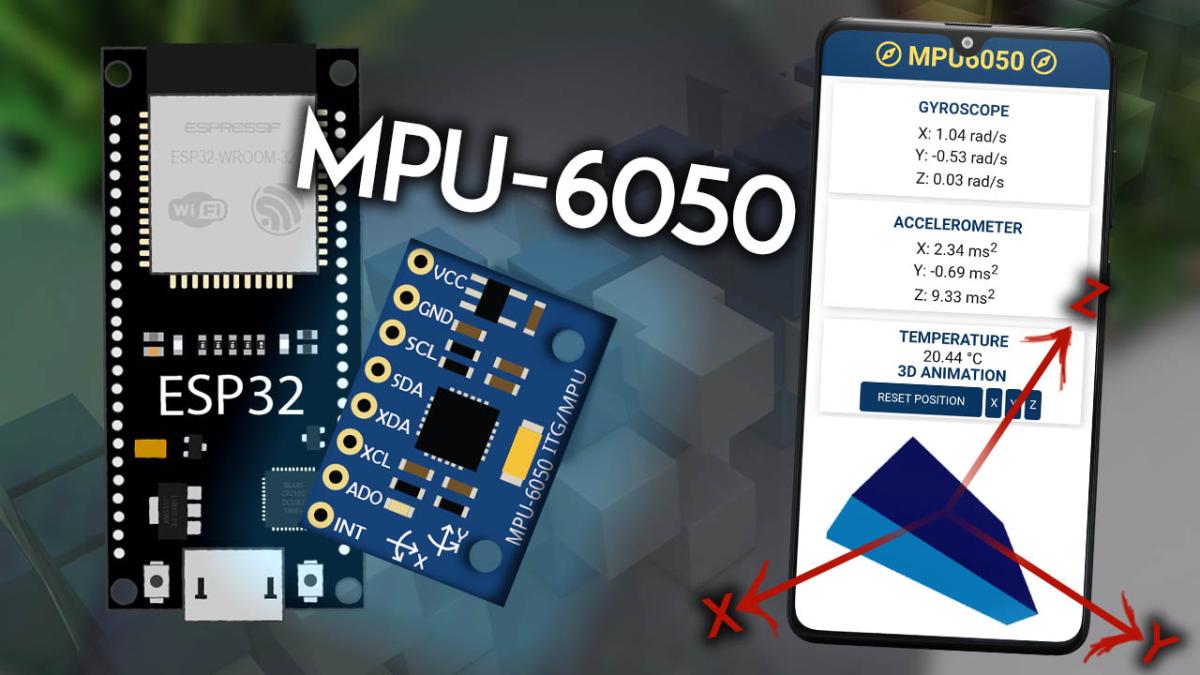
V tomto projektu vytvoříme webový server na mikrokontroleru ESP32, který bude zobrazovat data ze senzoru MPU-6050. Tento modul obsahuje akcelerometr, gyroskop a teplotní senzor. Data ze senzoru se budou zobrazovat přímo v internetovém prohlížeči.
Kromě samotných hodnot bude na webové stránce také 3D objekt, který se bude otáčet podle aktuální orientace senzoru. Tato 3D vizualizace je vytvořena pomocí JavaScriptové knihovny three.js.
Co projekt zobrazuje
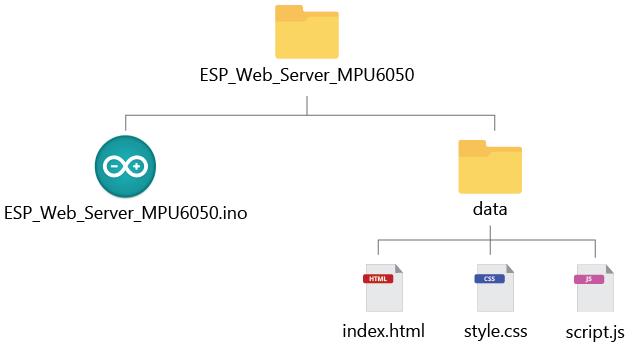
Webová stránka vytvořená ESP32 zobrazuje několik typů dat ze senzoru.
Zobrazují se hodnoty gyroskopu na osách X, Y a Z, které popisují rotační pohyb zařízení. Tyto hodnoty se aktualizují velmi rychle, přibližně každých 10 milisekund.
Dále se zobrazují hodnoty akcelerometru na osách X, Y a Z, které měří zrychlení a působení gravitace. Tyto údaje se aktualizují přibližně každých 200 milisekund.
Senzor také obsahuje teplotní senzor, takže webová stránka zobrazuje i aktuální teplotu modulu. Teplota se aktualizuje každou sekundu.
Na stránce je také 3D model senzoru, jehož orientace se mění podle pohybu modulu.
Zapojení MPU-6050 s ESP32
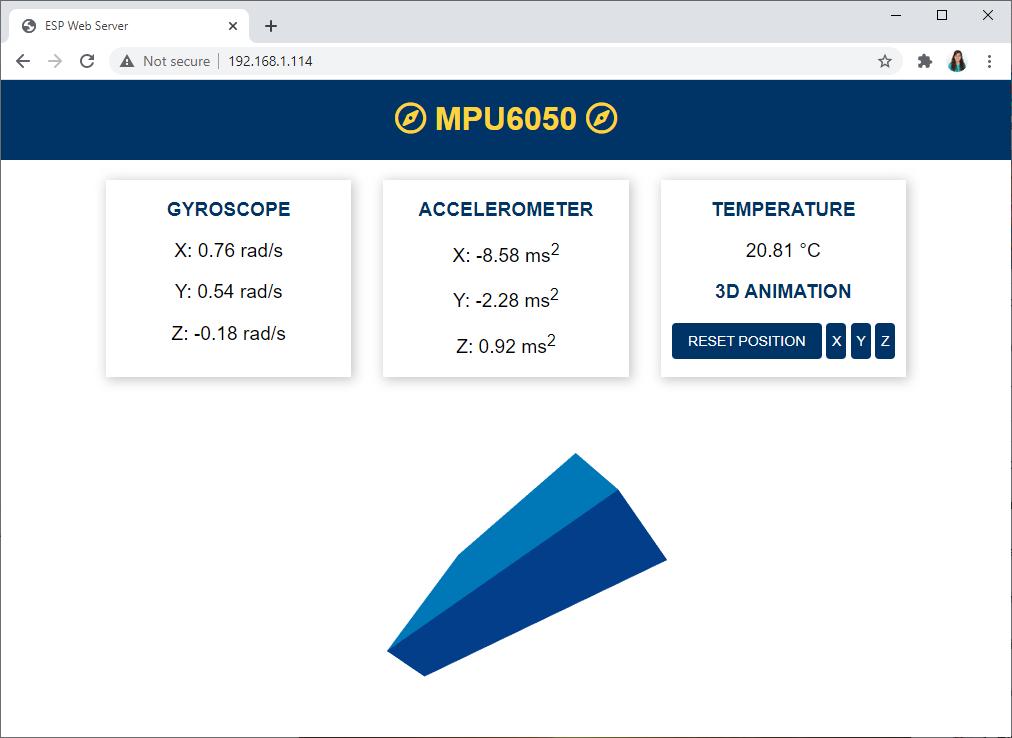
MPU-6050 komunikuje pomocí I²C sběrnice.
Pin VCC na modulu připojíme na 3.3 V na ESP32.
Pin GND připojíme na GND na ESP32.
Pro komunikaci jsou důležité dva další piny:
Pin SDA připojíme na GPIO 21 na ESP32.
Pin SCL připojíme na GPIO 22 na ESP32.
Tím je hardware připraven pro komunikaci se senzorem.
Struktura projektu
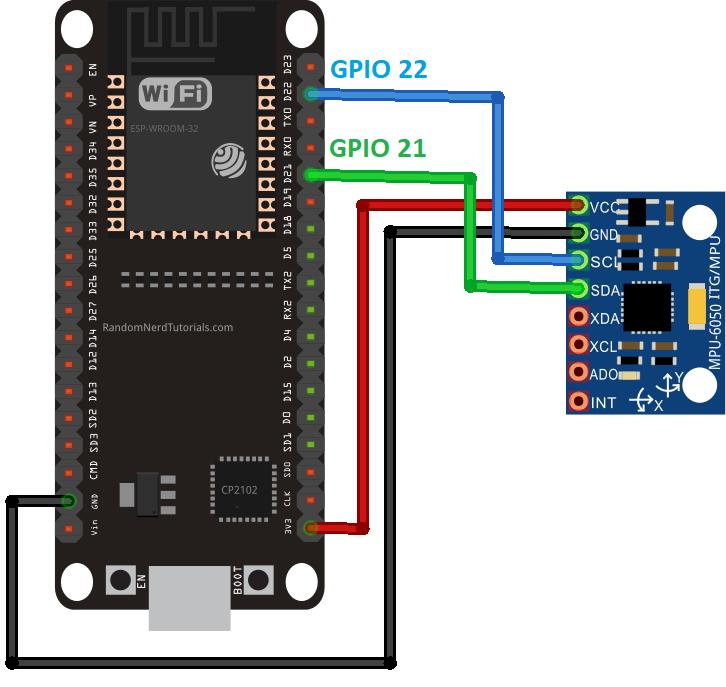
Aby byl projekt přehledný, je rozdělen do několika souborů.
Program pro ESP32 obsahuje Arduino kód, který:
- čte data ze senzoru
- vytváří webový server
- posílá data do prohlížeče
Kromě toho projekt obsahuje ještě tři další soubory uložené v paměti ESP32:
HTML soubor definuje strukturu webové stránky.
CSS soubor se stará o vzhled stránky.
JavaScript soubor zpracovává přijatá data a vytváří 3D vizualizaci senzoru.
Tyto soubory jsou uložené ve filesystemu ESP32 (LittleFS).
Potřebné knihovny
Pro tento projekt je potřeba nainstalovat několik knihoven.
Knihovna Adafruit MPU6050 slouží pro komunikaci se senzorem.
Knihovna Adafruit Unified Sensor poskytuje jednotné rozhraní pro senzory.
Knihovna Adafruit Bus IO zajišťuje komunikaci přes sběrnici.
Pro vytvoření webového serveru se používají:
- ESPAsyncWebServer
- AsyncTCP
Pro práci s JSON daty se používá knihovna Arduino_JSON.
Jak funguje webový server
ESP32 vytvoří HTTP server na portu 80. Když uživatel otevře IP adresu zařízení v prohlížeči, server odešle HTML stránku uloženou ve filesystemu.
Webová stránka pak začne přijímat data pomocí technologie Server-Sent Events (SSE). Ta umožňuje posílat data ze serveru do prohlížeče bez nutnosti neustále obnovovat stránku.
ESP32 pravidelně odesílá:
- data gyroskopu
- data akcelerometru
- teplotu
Tato data jsou odesílána ve formátu JSON, takže je lze snadno zpracovat v JavaScriptu.
3D vizualizace orientace
Na webové stránce se nachází 3D model senzoru, který se otáčí podle aktuální orientace modulu.
Tato vizualizace je vytvořena pomocí JavaScriptové knihovny three.js, která umožňuje vykreslovat 3D objekty přímo v prohlížeči.
Stránka obsahuje také tlačítka pro resetování orientace:
- reset všech os
- reset osy X
- reset osy Y
- reset osy Z
HTML soubor
1<!DOCTYPE HTML><html>
2<head>
3 <title>ESP Web Server</title>
4 <meta name="viewport" content="width=device-width, initial-scale=1">
5 <link rel="icon" href="data:,">
6 <link rel="stylesheet" type="text/css" href="style.css">
7 <link rel="stylesheet" href="https://use.fontawesome.com/releases/v5.7.2/css/all.css" integrity="sha384-fnmOCqbTlWIlj8LyTjo7mOUStjsKC4pOpQbqyi7RrhN7udi9RwhKkMHpvLbHG9Sr" crossorigin="anonymous">
8 <script src="https://cdnjs.cloudflare.com/ajax/libs/three.js/107/three.min.js"></script>
9</head>
10<body>
11 <div class="topnav">
12 <h1><i class="far fa-compass"></i> MPU6050 <i class="far fa-compass"></i></h1>
13 </div>
14 <div class="content">
15 <div class="cards">
16 <div class="card">
17 <p class="card-title">GYROSCOPE</p>
18 <p><span class="reading">X: <span id="gyroX"></span> rad</span></p>
19 <p><span class="reading">Y: <span id="gyroY"></span> rad</span></p>
20 <p><span class="reading">Z: <span id="gyroZ"></span> rad</span></p>
21 </div>
22 <div class="card">
23 <p class="card-title">ACCELEROMETER</p>
24 <p><span class="reading">X: <span id="accX"></span> ms<sup>2</sup></span></p>
25 <p><span class="reading">Y: <span id="accY"></span> ms<sup>2</sup></span></p>
26 <p><span class="reading">Z: <span id="accZ"></span> ms<sup>2</sup></span></p>
27 </div>
28 <div class="card">
29 <p class="card-title">TEMPERATURE</p>
30 <p><span class="reading"><span id="temp"></span> °C</span></p>
31 <p class="card-title">3D ANIMATION</p>
32 <button id="reset" onclick="resetPosition(this)">RESET POSITION</button>
33 <button id="resetX" onclick="resetPosition(this)">X</button>
34 <button id="resetY" onclick="resetPosition(this)">Y</button>
35 <button id="resetZ" onclick="resetPosition(this)">Z</button>
36 </div>
37 </div>
38 <div class="cube-content">
39 <div id="3Dcube"></div>
40 </div>
41 </div>
42<script src="script.js"></script>
43</body>
44</html>
45CSS soubor
1html {
2  font-family: Arial;
3  display: inline-block;
4  text-align: center;
5}
6p {
7  font-size: 1.2rem;
8}
9body {
10  margin: 0;
11}
12.topnav {
13  overflow: hidden;
14  background-color: #003366;
15  color: #FFD43B;
16  font-size: 1rem;
17}
18.content {
19  padding: 20px;
20}
21.card {
22  background-color: white;
23  box-shadow: 2px 2px 12px 1px rgba(140,140,140,.5);
24}
25.card-title {
26  color:#003366;
27  font-weight: bold;
28}
29.cards {
30  max-width: 800px;
31  margin: 0 auto;
32  display: grid; grid-gap: 2rem;
33  grid-template-columns: repeat(auto-fit, minmax(200px, 1fr));
34}
35.reading {
36  font-size: 1.2rem;
37}
38.cube-content{
39  width: 100%;
40  background-color: white;
41  height: 300px; margin: auto;
42  padding-top:2%;
43}
44#reset{
45  border: none;
46  color: #FEFCFB;
47  background-color: #003366;
48  padding: 10px;
49  text-align: center;
50  display: inline-block;
51  font-size: 14px; width: 150px;
52  border-radius: 4px;
53}
54#resetX, #resetY, #resetZ{
55  border: none;
56  color: #FEFCFB;
57  background-color: #003366;
58  padding-top: 10px;
59  padding-bottom: 10px;
60  text-align: center;
61  display: inline-block;
62  font-size: 14px;
63  width: 20px;
64  border-radius: 4px;
65}
Javascript soubor
1let scene, camera, rendered, cube;
2
3function parentWidth(elem) {
4  return elem.parentElement.clientWidth;
5}
6
7function parentHeight(elem) {
8  return elem.parentElement.clientHeight;
9}
10
11function init3D(){
12  scene = new THREE.Scene();
13  scene.background = new THREE.Color(0xffffff);
14
15  camera = new THREE.PerspectiveCamera(75, parentWidth(document.getElementById("3Dcube")) / parentHeight(document.getElementById("3Dcube")), 0.1, 1000);
16
17  renderer = new THREE.WebGLRenderer({ antialias: true });
18  renderer.setSize(parentWidth(document.getElementById("3Dcube")), parentHeight(document.getElementById("3Dcube")));
19
20  document.getElementById('3Dcube').appendChild(renderer.domElement);
21
22  // Create a geometry
23  const geometry = new THREE.BoxGeometry(5, 1, 4);
24
25  // Materials of each face
26  var cubeMaterials = [
27    new THREE.MeshBasicMaterial({color:0x03045e}),
28    new THREE.MeshBasicMaterial({color:0x023e8a}),
29    new THREE.MeshBasicMaterial({color:0x0077b6}),
30    new THREE.MeshBasicMaterial({color:0x03045e}),
31    new THREE.MeshBasicMaterial({color:0x023e8a}),
32    new THREE.MeshBasicMaterial({color:0x0077b6}),
33  ];
34
35  const material = new THREE.MeshFaceMaterial(cubeMaterials);
36
37  cube = new THREE.Mesh(geometry, material);
38  scene.add(cube);
39  camera.position.z = 5;
40  renderer.render(scene, camera);
41}
42
43// Resize the 3D object when the browser window changes size
44function onWindowResize(){
45  camera.aspect = parentWidth(document.getElementById("3Dcube")) / parentHeight(document.getElementById("3Dcube"));
46  //camera.aspect = window.innerWidth /  window.innerHeight;
47  camera.updateProjectionMatrix();
48  //renderer.setSize(window.innerWidth, window.innerHeight);
49  renderer.setSize(parentWidth(document.getElementById("3Dcube")), parentHeight(document.getElementById("3Dcube")));
50
51}
52
53window.addEventListener('resize', onWindowResize, false);
54
55// Create the 3D representation
56init3D();
57
58// Create events for the sensor readings
59if (!!window.EventSource) {
60  var source = new EventSource('/events');
61
62  source.addEventListener('open', function(e) {
63    console.log("Events Connected");
64  }, false);
65
66  source.addEventListener('error', function(e) {
67    if (e.target.readyState != EventSource.OPEN) {
68      console.log("Events Disconnected");
69    }
70  }, false);
71
72  source.addEventListener('gyro_readings', function(e) {
73    //console.log("gyro_readings", e.data);
74    var obj = JSON.parse(e.data);
75    document.getElementById("gyroX").innerHTML = obj.gyroX;
76    document.getElementById("gyroY").innerHTML = obj.gyroY;
77    document.getElementById("gyroZ").innerHTML = obj.gyroZ;
78
79    // Change cube rotation after receiving the readinds
80    cube.rotation.x = obj.gyroY;
81    cube.rotation.z = obj.gyroX;
82    cube.rotation.y = obj.gyroZ;
83    renderer.render(scene, camera);
84  }, false);
85
86  source.addEventListener('temperature_reading', function(e) {
87    console.log("temperature_reading", e.data);
88    document.getElementById("temp").innerHTML = e.data;
89  }, false);
90
91  source.addEventListener('accelerometer_readings', function(e) {
92    console.log("accelerometer_readings", e.data);
93    var obj = JSON.parse(e.data);
94    document.getElementById("accX").innerHTML = obj.accX;
95    document.getElementById("accY").innerHTML = obj.accY;
96    document.getElementById("accZ").innerHTML = obj.accZ;
97  }, false);
98}
99
100function resetPosition(element){
101  var xhr = new XMLHttpRequest();
102  xhr.open("GET", "/"+element.id, true);
103  console.log(element.id);
104  xhr.send();
105}
ESP32 program
1#include <Arduino.h>
2#include <WiFi.h>
3#include <AsyncTCP.h>
4#include <ESPAsyncWebServer.h>
5#include <Adafruit_MPU6050.h>
6#include <Adafruit_Sensor.h>
7#include <Arduino_JSON.h>
8#include "LittleFS.h"
9
10// Replace with your network credentials
11const char* ssid = "REPLACE_WITH_YOUR_SSID";
12const char* password = "REPLACE_WITH_YOUR_PASSWORD";
13
14// Create AsyncWebServer object on port 80
15AsyncWebServer server(80);
16
17// Create an Event Source on /events
18AsyncEventSource events("/events");
19
20// Json Variable to Hold Sensor Readings
21JSONVar readings;
22
23// Timer variables
24unsigned long lastTime = 0;
25unsigned long lastTimeTemperature = 0;
26unsigned long lastTimeAcc = 0;
27unsigned long gyroDelay = 10;
28unsigned long temperatureDelay = 1000;
29unsigned long accelerometerDelay = 200;
30
31// Create a sensor object
32Adafruit_MPU6050 mpu;
33
34sensors_event_t a, g, temp;
35
36float gyroX, gyroY, gyroZ;
37float accX, accY, accZ;
38float temperature;
39
40//Gyroscope sensor deviation
41float gyroXerror = 0.07;
42float gyroYerror = 0.03;
43float gyroZerror = 0.01;
44
45// Init MPU6050
46void initMPU(){
47  if (!mpu.begin()) {
48    Serial.println("Failed to find MPU6050 chip");
49    while (1) {
50      delay(10);
51    }
52  }
53  Serial.println("MPU6050 Found!");
54}
55
56void initLittleFS() {
57  if (!LittleFS.begin()) {
58    Serial.println("An error has occurred while mounting LittleFS");
59  }
60  Serial.println("LittleFS mounted successfully");
61}
62
63// Initialize WiFi
64void initWiFi() {
65  WiFi.mode(WIFI_STA);
66  WiFi.begin(ssid, password);
67  Serial.println("");
68  Serial.print("Connecting to WiFi...");
69  while (WiFi.status() != WL_CONNECTED) {
70    Serial.print(".");
71    delay(1000);
72  }
73  Serial.println("");
74  Serial.println(WiFi.localIP());
75}
76
77String getGyroReadings(){
78  mpu.getEvent(&a, &g, &temp);
79
80  float gyroX_temp = g.gyro.x;
81  if(abs(gyroX_temp) > gyroXerror)  {
82    gyroX += gyroX_temp/50.00;
83  }
84
85  float gyroY_temp = g.gyro.y;
86  if(abs(gyroY_temp) > gyroYerror) {
87    gyroY += gyroY_temp/70.00;
88  }
89
90  float gyroZ_temp = g.gyro.z;
91  if(abs(gyroZ_temp) > gyroZerror) {
92    gyroZ += gyroZ_temp/90.00;
93  }
94
95  readings["gyroX"] = String(gyroX);
96  readings["gyroY"] = String(gyroY);
97  readings["gyroZ"] = String(gyroZ);
98
99  String jsonString = JSON.stringify(readings);
100  return jsonString;
101}
102
103String getAccReadings() {
104  mpu.getEvent(&a, &g, &temp);
105  // Get current acceleration values
106  accX = a.acceleration.x;
107  accY = a.acceleration.y;
108  accZ = a.acceleration.z;
109  readings["accX"] = String(accX);
110  readings["accY"] = String(accY);
111  readings["accZ"] = String(accZ);
112  String accString = JSON.stringify (readings);
113  return accString;
114}
115
116String getTemperature(){
117  mpu.getEvent(&a, &g, &temp);
118  temperature = temp.temperature;
119  return String(temperature);
120}
121
122void setup() {
123  Serial.begin(115200);
124  initWiFi();
125  initLittleFS();
126  initMPU();
127
128  // Handle Web Server
129  server.on("/", HTTP_GET, [](AsyncWebServerRequest *request){
130    request->send(LittleFS, "/index.html", "text/html");
131  });
132
133  server.serveStatic("/", LittleFS, "/");
134
135  server.on("/reset", HTTP_GET, [](AsyncWebServerRequest *request){
136    gyroX=0;
137    gyroY=0;
138    gyroZ=0;
139    request->send(200, "text/plain", "OK");
140  });
141
142  server.on("/resetX", HTTP_GET, [](AsyncWebServerRequest *request){
143    gyroX=0;
144    request->send(200, "text/plain", "OK");
145  });
146
147  server.on("/resetY", HTTP_GET, [](AsyncWebServerRequest *request){
148    gyroY=0;
149    request->send(200, "text/plain", "OK");
150  });
151
152  server.on("/resetZ", HTTP_GET, [](AsyncWebServerRequest *request){
153    gyroZ=0;
154    request->send(200, "text/plain", "OK");
155  });
156
157  // Handle Web Server Events
158  events.onConnect([](AsyncEventSourceClient *client){
159    if(client->lastId()){
160      Serial.printf("Client reconnected! Last message ID that it got is: %u\n", client->lastId());
161    }
162    // send event with message "hello!", id current millis
163    // and set reconnect delay to 1 second
164    client->send("hello!", NULL, millis(), 10000);
165  });
166  server.addHandler(&events);
167
168  server.begin();
169}
170
171void loop() {
172  if ((millis() - lastTime) > gyroDelay) {
173    // Send Events to the Web Server with the Sensor Readings
174    events.send(getGyroReadings().c_str(),"gyro_readings",millis());
175    lastTime = millis();
176  }
177  if ((millis() - lastTimeAcc) > accelerometerDelay) {
178    // Send Events to the Web Server with the Sensor Readings
179    events.send(getAccReadings().c_str(),"accelerometer_readings",millis());
180    lastTimeAcc = millis();
181  }
182  if ((millis() - lastTimeTemperature) > temperatureDelay) {
183    // Send Events to the Web Server with the Sensor Readings
184    events.send(getTemperature().c_str(),"temperature_reading",millis());
185    lastTimeTemperature = millis();
186  }
187}
Spuštění projektu
Po nahrání programu do ESP32 otevři Serial Monitor s rychlostí 115200 baudů.
ESP32 po připojení k WiFi vypíše svou IP adresu. Tu zadej do webového prohlížeče na počítači nebo telefonu připojeném ke stejné síti.
Po otevření stránky uvidíš:
- aktuální hodnoty akcelerometru
- hodnoty gyroskopu
- teplotu senzoru
- 3D model senzoru reagující na pohyb
Když pohneš senzorem, hodnoty i orientace 3D objektu se okamžitě změní.
Možná rozšíření projektu
Projekt můžeš dále rozšířit například o:
- filtrování dat pomocí Kalmanova filtru
- ukládání dat do databáze
- přenos dat do Grafana dashboardu
- vytvoření ovladače pro robot nebo dron
MPU-6050 se často používá v projektech jako jsou stabilizace dronů, robotika nebo motion tracking.